Installing GIMMIE
Add the X Bookmark Exporter to your browser in about two minutes. No coding, no command line.
The steps below match the browser you pick. We guessed yours automatically, change it if we got it wrong.
Download GIMMIE
Click here to download the ZIP. One click, that's the whole download.
Or, on the GIMMIE GitHub page, click the green Code button, then Download ZIP. (If someone shared a ZIP with you directly, just use that.)
Unzip it, and keep the folder
On a Mac: double-click the downloaded ZIP. A folder appears next to it.
On Windows: right-click the ZIP and choose Extract All, then Extract. Double-clicking is not enough on Windows: that only opens a preview of the ZIP that looks like a folder but isn't one.
Either way you end up with a folder named gimmie-main with files inside it, including one called manifest.json.
Put this folder somewhere permanent (like your Documents), because GIMMIE runs from it. If you delete or move the folder later, the extension stops working.
Open your browser's Extensions page
In the address bar, type chrome://extensions and press Enter.
You can also reach it from the menu: ⋮ → Extensions → Manage Extensions.
In the address bar, type edge://extensions and press Enter.
You can also reach it from the menu: ⋯ (Settings and more) → Extensions → Manage extensions.
In the address bar, type brave://extensions and press Enter.
You can also reach it from the menu: ☰ → Extensions.
Turn on Developer mode
Find the Developer mode switch in the top-right corner of that page and turn it on. A new row of buttons will appear at the top.
Find the Developer mode toggle in the left sidebar of that page, near the bottom, and turn it on. New buttons will appear.
Click "Load unpacked" and pick the folder
After Developer mode is on, you'll see new buttons. Click Load unpacked:
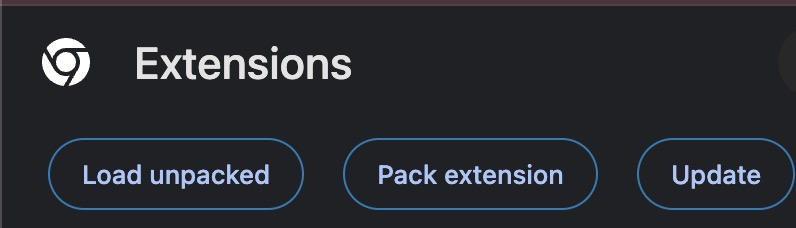
In the file picker, select the gimmie-main folder you unzipped in step 2 (the one containing manifest.json) and confirm.
GIMMIE now appears in your list. That's it, it's installed.
Pin it so it's easy to find
Click the puzzle-piece icon 🧩 near the address bar, then click the pin next to GIMMIE. Its icon will stay in your toolbar.
Click the puzzle-piece icon 🧩 near the address bar, then click the eye icon (Show in toolbar) next to GIMMIE. Its icon will stay in your toolbar.
Use it
Go to x.com/i/bookmarks and click the GIMMIE icon. Your bookmarks load automatically. Search, filter, or sort to find a guide or thread, then export it as Markdown.
Drop that Markdown file into Claude, ChatGPT, or NotebookLM and ask it to apply the guide to your own project. That's the whole point: one bookmarked playbook becomes something your AI can actually use.
Troubleshooting
"Load unpacked" is greyed out or missing
Developer mode isn't on yet. Flip the Developer mode switch in the top-right of the Extensions page (step 4), then try again.
Developer mode isn't on yet. Flip the Developer mode toggle in the left sidebar of the Extensions page (step 4), then try again.
It says "Manifest file is missing or unreadable"
You picked the wrong folder, or (on Windows) you picked the ZIP itself, which only looks like a folder. Select the unzipped gimmie-main folder, the one that directly contains manifest.json. On Windows, make sure you extracted first: right-click the ZIP and choose Extract All.
The extension disappeared or stopped working
The folder was probably moved, renamed, or deleted, or it was still inside the ZIP. Unzip it, put the folder in a permanent spot, and load it again from there.
GIMMIE opens but finds nothing on my bookmarks
GIMMIE tells you which of the two causes it is: either you aren't signed in to X in this browser, or your bookmarks list is genuinely empty. Fix the one it names, then click Start over in the popup. If GIMMIE shows its welcome screen instead of your bookmarks, you aren't on the bookmarks page yet, click Open My Bookmarks and it takes you there. X occasionally changes its site, which can require a GIMMIE update, if it keeps happening, please report it on the project page.
How do I update to a newer version?
Download the new ZIP and unzip it. Delete the old gimmie-main folder, then move the new one into the exact same place with the exact same name.
Finally, click the circular refresh arrow on GIMMIE's card on the Extensions page (if you don't see it, turn Developer mode back on first). Because the folder has the same name and location, the browser picks up the new version right away.
Finally, click the Reload link on GIMMIE's card on the Extensions page (if you don't see it, turn Developer mode back on first). Because the folder has the same name and location, Edge picks up the new version right away.
Heads up for Mac users: unzipping "over" the old folder doesn't merge anything, it just creates a second folder called gimmie-main 2. That's why you delete the old one first.
My browser warned me about "developer mode extensions"
Chrome sometimes shows a popup at startup about developer mode extensions, listing GIMMIE with a Disable button. That warning is normal for any extension installed outside the Chrome Web Store. Close it or choose to keep the extension. If you already clicked Disable, go to chrome://extensions and flip GIMMIE's toggle back on.
Edge may occasionally warn you about extensions installed from outside its store. That warning is normal for any extension you loaded yourself. Keep the extension. If it got turned off, go to edge://extensions and flip GIMMIE's toggle back on.
Brave may occasionally warn you about extensions installed from outside the Chrome Web Store. That warning is normal for any extension you loaded yourself. Keep the extension. If it got turned off, go to brave://extensions and flip GIMMIE's toggle back on.
Is it safe to keep Developer mode on?
Yes. Developer mode only lets you install extensions from a folder like this one. You can leave it on, or turn it off after installing, GIMMIE keeps working either way.